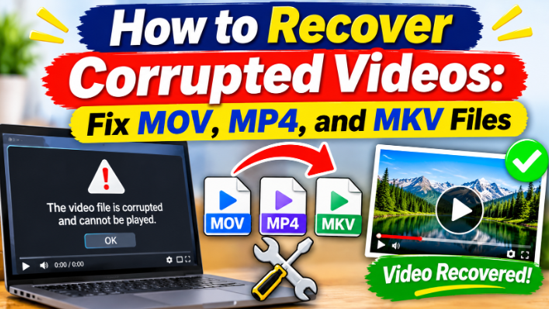
A corrupted video file is one of the most frustrating problems in media. The file is there, it has the right name, it even has the right size – but when you try to play it, nothing happens, or the picture freezes, or the audio stutters. Whether the file was damaged during a failed transfer, a corrupted card, or an interrupted recording, the footage often feels lost.
But corrupted videos are frequently repairable. The video data is still on the storage; the file’s structure is what broke. With the right tools, you can fix MOV, MP4, MKV, and other formats – and get your footage playing again.
Why Video Files Get Corrupted
Video files are complex structures: video tracks, audio tracks, metadata, and timing information all live inside one file. Damage to any part can make the whole file unplayable. Common causes:
- Interrupted transfers. Unplugging a card or drive mid-copy truncates the file.
- Card or drive errors. Bad sectors and failing storage corrupt data as it is written or read.
- Power loss during recording. A camera or computer losing power mid-write leaves an incomplete file.
- Incomplete recovery. A video recovered after deletion may come back with a damaged structure.
In most cases, the video data itself survives – only the file’s structure is damaged, which is why repair works.
Step 1 – Try to Recover a Better Copy First
Before repairing, consider whether a better copy of the video exists on the storage. If the file was partially recovered, a deeper scan may find a more complete version.
Wondershare Recoverit combines recovery and repair in one tool, so you can scan for the best version of the file and repair it in the same workflow. It is part of the Wondershare data recovery suite, which covers everything from single damaged clips to full storage recovery.
See also: Top Things to Consider Before Hiring Roofers in Central Coast
Step 2 – Repair the Corrupted Video
When you have the file, repair it. Recoverit’s video repair tool supports a wide range of formats – MOV, MP4, M2TS, MKV, MTS, AVI, MXF, and more – which covers footage from most cameras, drones, and GoPros.
1. Open the video repair module in Recoverit.
2. Add the corrupted video file.
3. Click Repair and let the tool rebuild the file’s structure – video track, audio track, and metadata.
4. Preview the repaired video to confirm it plays, then save it.
Step 3 – Use Advanced Repair for Severe Damage
Some videos are damaged beyond a standard repair – the file structure is too broken for the tool to rebuild it from the file alone. For these, Advanced Repair uses a sample file: any healthy video from the same device (same camera, drone, or GoPro) provides the structural template the tool needs to rebuild your corrupted file.
1. In the repair tool, choose Advanced Repair.
2. Add the corrupted video and a sample video from the same device.
3. Repair and preview the result.
This is the technique that rescues footage standard repair cannot touch – and it is why keeping a short test clip from each device you own is a smart habit.
What If Repair Does Not Work?
If both standard and advanced repair fail, the video’s data itself may be too damaged – for example, if the card was reused heavily after the corruption. In that case:
- Try a deeper recovery scan. A more complete version of the file may exist on the storage.
- Keep the damaged file. Future repair attempts or tools may handle it.
- Check if a partial version plays. Sometimes a video player can open the first seconds of a damaged file, which may contain the footage you need.
Preventing Video Corruption
- Eject cards and drives properly. Interrupted writes are the top corruption cause.
- Don’t record on failing cards. A card that errors should be retired.
- Back up after every shoot. Corruption is less scary when footage lives in two places.
- Keep a sample clip from each device. Advanced Repair depends on it.
- Use reliable power. Avoid recording while batteries are critically low.
Conclusion
Corrupted videos are usually repairable – the data survives; the file structure is what broke. Scan for the best version, repair the structure, and use Advanced Repair with a sample file for severe damage. Wondershare Recoverit does all of it in one tool: recover the corrupted videos, repair, and preview, with support for MOV, MP4, MKV, and more. When you need to fix corrupted videos or restore footage that refused to play, the repair is often one click away.
